Generate SFTP/SSH Secure Key Pair (Requires an enterprise plan)
On Windows
You can use the free open-source application PUTTYgen, which is a standalone program that does not require setup.
You can download it from the maintainer's website.
- Launch the PUTTYgen application.
- Choose RSA for the "Type of key to generate"
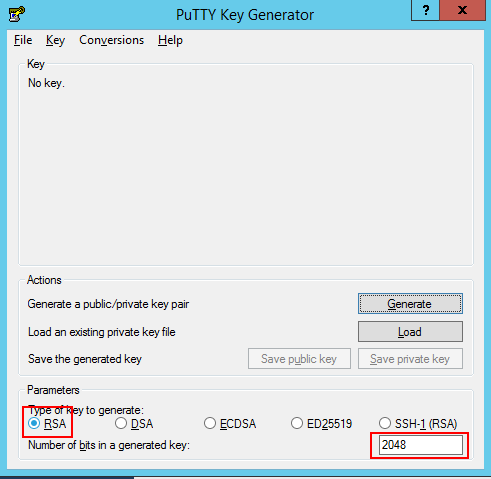
- Click the Generate button, and then move around your mouse.
- Continue moving mouse around until the progress bar is full.
- The tool will finish generating a public and private key pair.
- Save the private and public key files to a location and safeguard them.
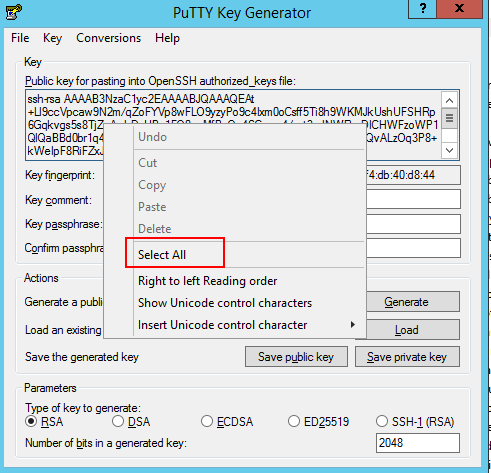
- Right click in the text area labeled "Public key for pasting into OpenSSH
authorized_keys file", then select "Select All"
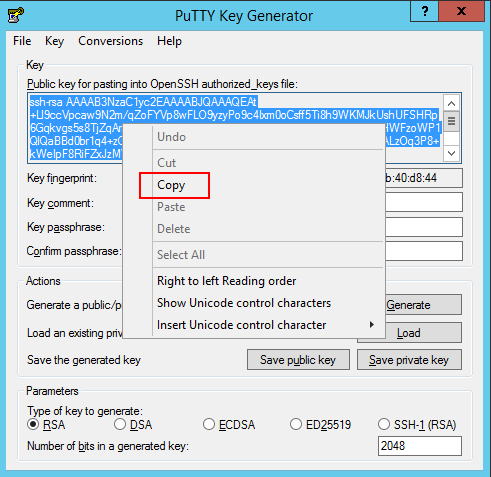
- Right click again and select Copy to copy the entire Public Key text.
- Finally you need to add the SFTP public key to your DriveHQ account.
Log on to DriveHQ.com website, navigate to your Account Details page, then click
Security -> Manage SFTP Secure Key Pair,
and then paste the contents of your clipboard into the Public Key text area and click Save.
On Mac OS X
Mac OS X has a built-in tool for generating an SFTP/SSH key pair.
Click the magnifier in the top-right corner of your screen,
type in Terminal and hit enter to open the Terminal application.
-
Create a new RSA Key
ssh-keygen -t rsa
- When prompted, specify the path you want to save the key files in.
Enter the filename in which to save the key (/home/user/.ssh/id_rsa):
- You can enter a passphrase for the private key when prompted.
(A passphrase is not required for the private key). If you enter a passphrase, you will have
to type it in each time you use the private key.
Enter passphrase (empty for no passphrase):
- After your key is generated you will want to copy it to your clipboard
so that you can add it to your SFTP Keys.
pbcopy < ~/.ssh/id_rsa.pub
- Finally you need to add the SFTP/SSH public key to your DriveHQ account. Log in to DriveHQ.com,
navigate to the Account Details page, then click Security ->
Manage SFTP Secure Key Pair.
Paste the contents of your clipboard into the Public Key text area and click Save.
On Linux
Linux has a built-in tool to generate an SSH/SFTP key pair.
Simply open your bash shell and type the following commands.
- Create the new RSA Key
ssh-keygen -t rsa
- Specify the path you want to save the key files in.
Enter the filename to save the key (/home/user/.ssh/id_rsa):
- You can enter a passphrase for the private key when prompted.
(A passphrase is not required). If you enter a passphrase,
you will have to type it in each time you use the private key.
Enter passphrase (empty for no passphrase):
- Your key is generated. Please copy it to your clipboard so that you can paste it to your DriveHQ account.
xclip -sel clip < ~/.ssh/id_rsa.pub
- Finally you need to add the SFTP/SSH public key to your DriveHQ account. Log on to DriveHQ.com,
navigate to Account Details, then click Security ->
Manage SFTP Secure Key Pair. You can then
paste the contents of your clipboard into the Public Key text area and click Save.