 DriveHQ.com Online Storage FeaturesDriveHQ.com Online Storage Features
Once you have a DriveHQ account, you can logon www.drivehq.com using your username and password. By default, it will go to the "My Storage" page, as shown below:
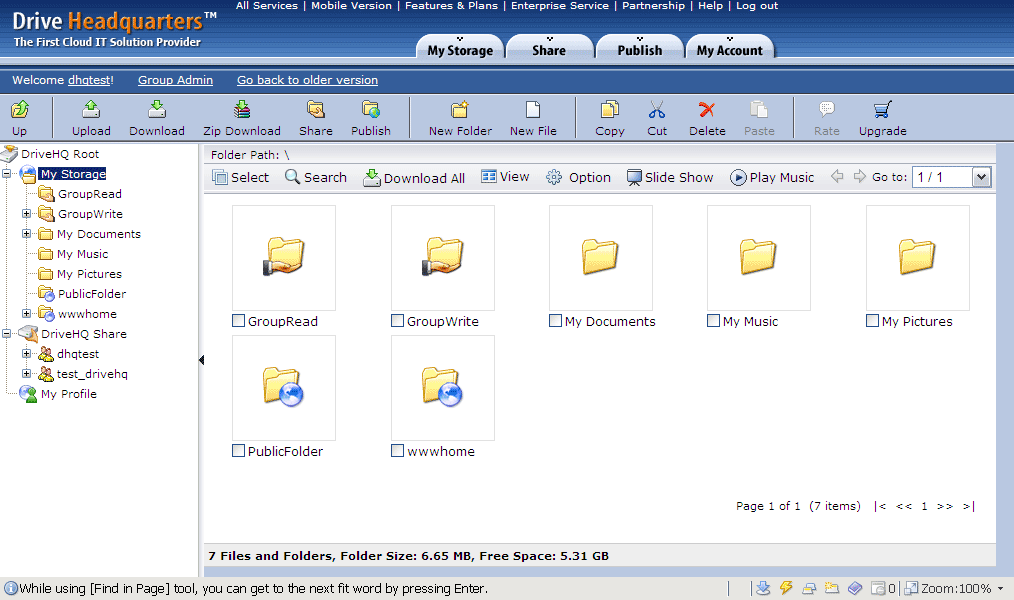
The "My Storage" page is very similar to Windows Explorer.
On top of the page below the main tabs, you can see a Toolbar.

The following features available in the Toolbar:
Drag and drop upload / download is not supported on DriveHQ.com website. You can use DriveHQ FileManager client software or other FTP client software, incl. Windows Explorer for drag and drop.
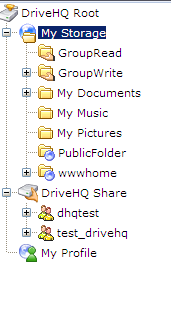
On the left-hand side, it displays the Folder Tree, which makes it very easy to navigate all folders in your account as well as access all folders shared to you by other users. The root folder "DriveHQ Root" is not a real folder. It is a virtual folder, which contains two other virtual folders: "My Storage" and "DriveHQ Share". All folders / files in "My Storage" virtual folder belong to the current logon user account, which it always has full access.
The folders in "DriveHQ Share" virtual folder are folders shared to you by other DriveHQ members. Other users may share folders to you by entering your username / email address in the "Share-to" list. The shared folder permission is determined by the user who shared the folder to you. A folder can be shared to you with the following access rights:
More detailed info about shared folder is available in the "Share" section.
On the right-hand side, it displays the folder contents. You can edit folder / file name; click on a folder icon enter the folder; or click on a File icon to open the ShowFile page. You can also search a file by clicking on the Search button, change the folder view to "Detail View" or "Thumbnail View", etc.